Camera Simulator#
Use Vimba X without a physical camera.
The Camera Simulator TL (transport layer) enables you to use Vimba X without a physical camera. The available simulated cameras resemble Alvium cameras. The DeviceLinkThroughputLimit feature is available, but note that the timing of simulated cameras doesn’t exactly match the timing of the camera hardware.
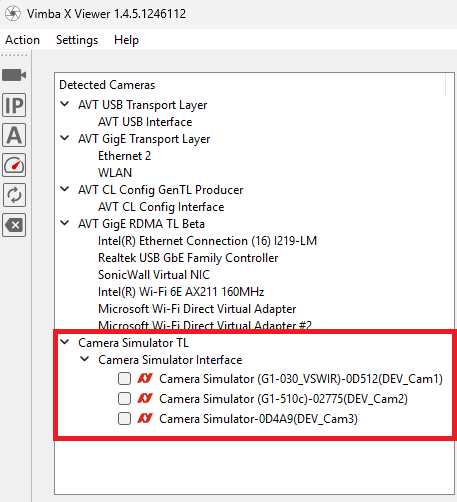
Simulated cameras in Vimba X Viewer#
By default, each camera produces a test image.
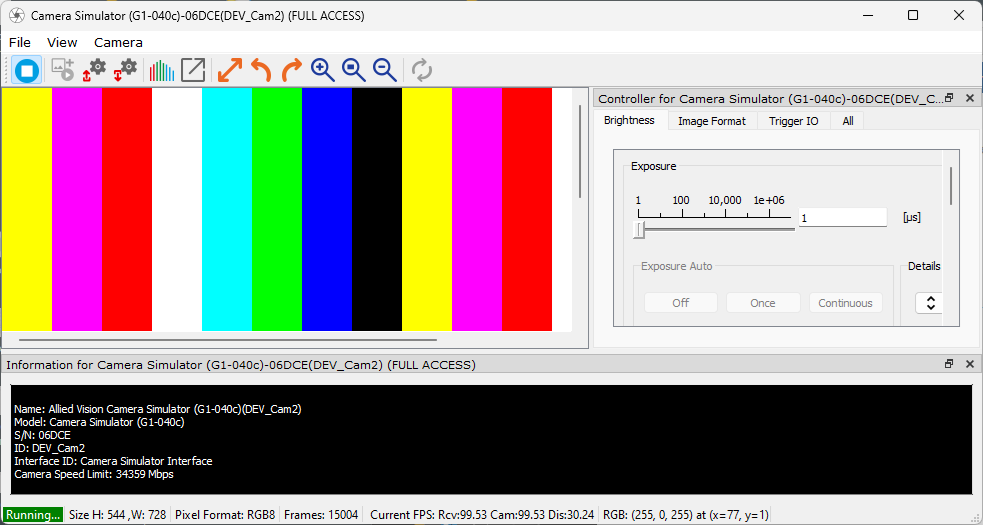
Test image#
Selecting simulated cameras#
To select simulated camera models:
Go to [Vimba X install directory]/cti.
Available simulated camera models are listed in VimbaCameraSimulatorTLPresets.json.
Use VimbaCameraSimulatorTL.xml in the same directory to select simulated cameras:

Select simulated cameras#
Note
Available camera features do not represent the actually available feature set of the cameras.
Adding simulated cameras#
You can add more simulated camera models to VimbaCameraSimulatorTLPresets.json. Color models will only appear in the camera list if “width” is divisible by 2 and “height” is divisible by 8.
Customizing simulated images#
To change simulated images:
Go to [Vimba X install directory]/cti.
Use VimbaCameraSimulatorTL.xml in the same directory to customize simulated images.
Follow the instructions in the comments to use your own image or image series.
Note
Please be aware that a Vimba X uninstall deletes VimbaCameraSimulatorTL.xml. To preserve your settings, save this file outside of the Vimba X install directory. After the installation of Vimba X, copy your changes to the new XML file.
Saving cameras settings#
You can save the settings of a simulated camera to a User Set. UserSet = 0 is the Default Set. By default, saved User Sets are written as a JSON file to the default directory for temporary files:
The Temp directory of the user (Windows)
/var/tmp or /tmp (Linux)
To select a different directory, open VimbaCameraSimulatorTL.xml and change the CustomUserSetSaveDirectory.
You can also save the settings of each simulated camera as an XML file with Save/Load Settings in the Viewer dialog or via API.
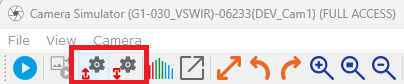
Save/Load Settings in Vimba X Viewer#